给Ubuntu22.04的根目录扩容的全过程
构建多次镜像后,就把容量占满了,导致一些 Pod 被 Evicted。有的镜像也不太好删,宿主机上却有很多空余的空间,所以可以直接扩容来处理。操作环境:Ubuntu 22.04.1 LTSVMware Fusion 13涉及到的命令:partedfdiskdfpvresize/pvdisplaylv
构建多次镜像后,就把容量占满了,导致一些 Pod 被 Evicted。有的镜像也不太好删,宿主机上却有很多空余的空间,所以可以直接扩容来处理。
操作环境:
- Ubuntu 22.04.1 LTS
- VMware Fusion 13
涉及到的命令:
- parted
- fdisk
- df
- pvresize/pvdisplay
- lvdisplay/lvextend
- resize2fs
现状
由于之前已经扩成功了,这里只是再做一遍,所以空余的空间还挺大。
为了将根目录扩容到 150G,现在只有 97G。
$ sudo df -h
Filesystem                         Size  Used Avail Use% Mounted on
tmpfs                              892M  3.1M  889M   1% /run
/dev/mapper/ubuntu--vg-ubuntu--lv   97G   38G   55G  41% /
tmpfs                              4.4G     0  4.4G   0% /dev/shm
tmpfs                              5.0M     0  5.0M   0% /run/lock
/dev/sda2                          2.0G  247M  1.6G  14% /boot
步骤
扩展物理磁盘容量
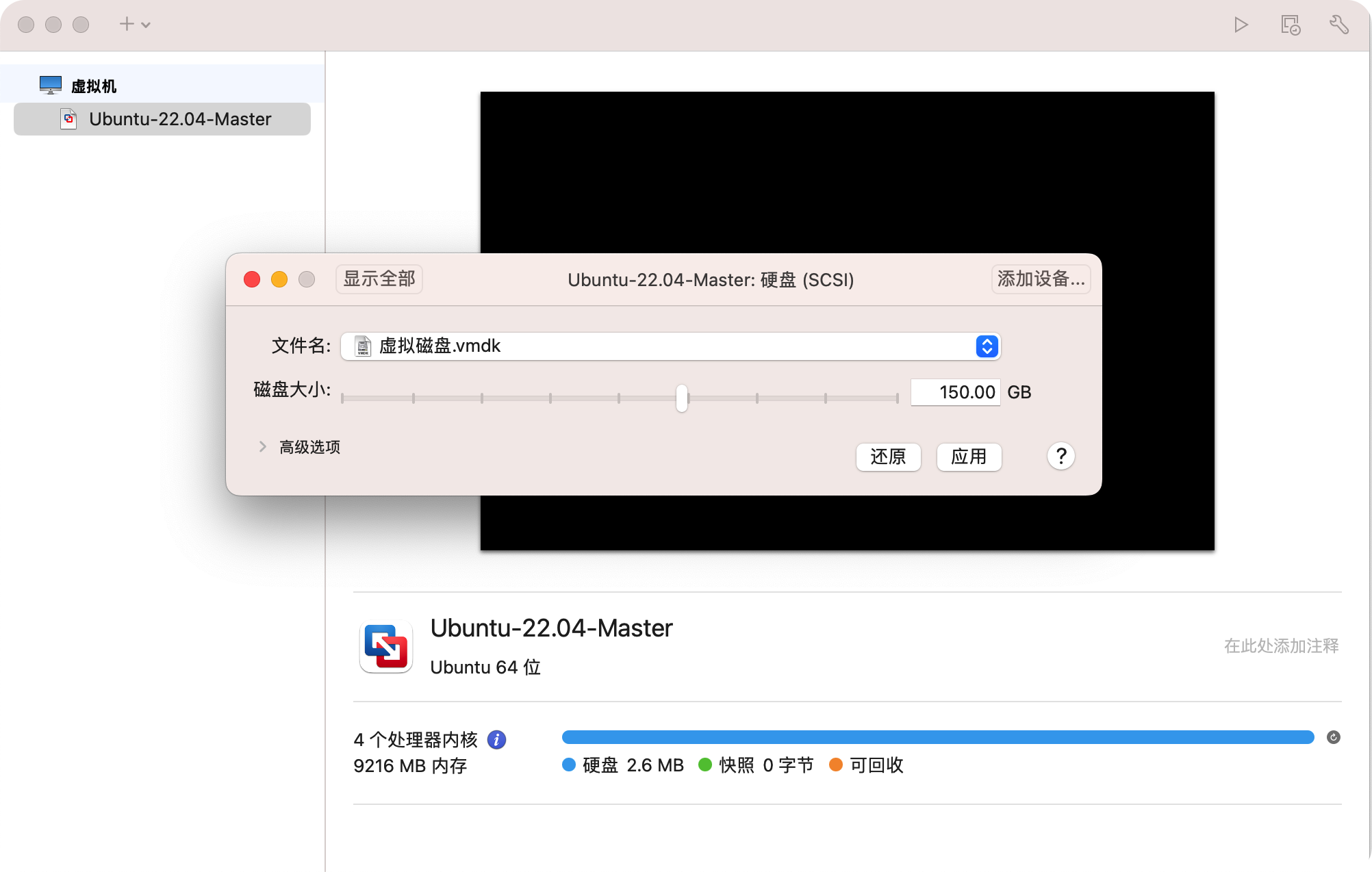
关闭虚拟机,然后在虚拟机软件中,为硬盘扩容。调整好容量后,点击应用。
开机,进入虚拟机,查看磁盘大小。
$ sudo fdisk -l
...
Disk /dev/sda: 150 GiB, 161061273600 bytes, 314572800 sectors
Disk model: VMware Virtual S
Units: sectors of 1 * 512 = 512 bytes
Sector size (logical/physical): 512 bytes / 512 bytes
I/O size (minimum/optimal): 512 bytes / 512 bytes
Disklabel type: gpt
Disk identifier: B314ED9A-5F2F-4EB9-80C8-380D8FBB8F80

Device       Start       End   Sectors Size Type
/dev/sda1     2048      4095      2048   1M BIOS boot
/dev/sda2     4096   4198399   4194304   2G Linux filesystem
/dev/sda3  4198400 209715166 205516767  98G Linux filesystem


Disk /dev/mapper/ubuntu--vg-ubuntu--lv: 98 GiB, 105222504448 bytes, 205512704 sectors
Units: sectors of 1 * 512 = 512 bytes
Sector size (logical/physical): 512 bytes / 512 bytes
I/O size (minimum/optimal): 512 bytes / 512 bytes
可以看到磁盘以及扩容到 150G 了,但是新增的容量还处于 Free 状态,并未被系统识别并使用起来。
$ sudo fdisk /dev/sda

Welcome to fdisk (util-linux 2.37.2).
Changes will remain in memory only, until you decide to write them.
Be careful before using the write command.

GPT PMBR size mismatch (209715199 != 314572799) will be corrected by write.
This disk is currently in use - repartitioning is probably a bad idea.
It's recommended to umount all file systems, and swapoff all swap
partitions on this disk.


Command (m for help): F

Unpartitioned space /dev/sda: 50 GiB, 53687074304 bytes, 104857567 sectors
Units: sectors of 1 * 512 = 512 bytes
Sector size (logical/physical): 512 bytes / 512 bytes

    Start       End   Sectors Size
209715200 314572766 104857567  50G
让新增容量追加到对应磁盘设备上
使用 parted 将新增的容量追加到 /dev/sda3 上
sudo parted /dev/sda
unit s
查看空闲空间 p free
(parted) p free
Model: VMware, VMware Virtual S (scsi)
Disk /dev/sda: 314572800s
Sector size (logical/physical): 512B/512B
Partition Table: gpt
Disk Flags:

Number  Start       End         Size        File system  Name  Flags
        34s         2047s       2014s       Free Space
 1      2048s       4095s       2048s                          bios_grub
 2      4096s       4198399s    4194304s    ext4
 3      4198400s    209715166s  205516767s
        209715167s  314572766s  104857600s  Free Space
将空闲空间追加到 3 分区上 resizepart 3,输入空闲空间的 End 数值,然后再查看空闲空间。
(parted) resizepart 3
End?  [209715166s]? 314572766s

(parted) p free
Model: VMware, VMware Virtual S (scsi)
Disk /dev/sda: 314572800s
Sector size (logical/physical): 512B/512B
Partition Table: gpt
Disk Flags:

Number  Start     End         Size        File system  Name  Flags
        34s       2047s       2014s       Free Space
 1      2048s     4095s       2048s                          bios_grub
 2      4096s     4198399s    4194304s    ext4
 3      4198400s  314572766s  310374367s
可以看到 /dev/sda3 以及扩容完毕,按 q 退出 parted。
让LVM识别到新增的磁盘容量
更新LVM中pv物理卷
$ sudo pvresize /dev/sda3
  Physical volume "/dev/sda3" changed
  1 physical volume(s) resized or updated / 0 physical volume(s) not resized
查看LVM中pv状态
$ sudo pvdisplay
  --- Physical volume ---
  PV Name               /dev/sda3
  VG Name               ubuntu-vg
  PV Size               <148.00 GiB / not usable 16.50 KiB
  Allocatable           yes
  PE Size               4.00 MiB
  Total PE              37887
  Free PE               12800
  Allocated PE          25087
  PV UUID               eKN8FR-r6VU-127T-AoNO-tjvm-AYHb-68zSSY
查看LVM逻辑卷状态
$ sudo lvdisplay
  --- Logical volume ---
  LV Path                /dev/ubuntu-vg/ubuntu-lv
  LV Name                ubuntu-lv
  VG Name                ubuntu-vg
  LV UUID                276mRA-dCfi-PKNd-MLKM-4lWp-SFNR-a0hAee
  LV Write Access        read/write
  LV Creation host, time ubuntu-server, 2022-08-29 21:59:13 +0800
  LV Status              available
  # open                 1
  LV Size                <98.00 GiB
  Current LE             25087
  Segments               1
  Allocation             inherit
  Read ahead sectors     auto
  - currently set to     256
  Block device           253:0
给LVM逻辑卷扩容
$ sudo lvextend -l +100%FREE /dev/ubuntu-vg/ubuntu-lv
  Size of logical volume ubuntu-vg/ubuntu-lv changed from <98.00 GiB (25087 extents) to <148.00 GiB (37887 extents).
  Logical volume ubuntu-vg/ubuntu-lv successfully resized.
刷新逻辑卷
$ sudo resize2fs /dev/ubuntu-vg/ubuntu-lv
resize2fs 1.46.5 (30-Dec-2021)
Filesystem at /dev/ubuntu-vg/ubuntu-lv is mounted on /; on-line resizing required
old_desc_blocks = 13, new_desc_blocks = 19
The filesystem on /dev/ubuntu-vg/ubuntu-lv is now 38796288 (4k) blocks long.
查看容量是否变更
$ df -h
Filesystem                         Size  Used Avail Use% Mounted on
tmpfs                              892M  3.1M  889M   1% /run
/dev/mapper/ubuntu--vg-ubuntu--lv  146G   38G  102G  27% /
tmpfs                              4.4G     0  4.4G   0% /dev/shm
tmpfs                              5.0M     0  5.0M   0% /run/lock
/dev/sda2                          2.0G  247M  1.6G  14% /boot